
Browse device photos
Outline · This page is ready for verified steps and current screenshots.
Allow photo access
- The first time you open Photos workspace, system will initially ask you permission to access Photos.
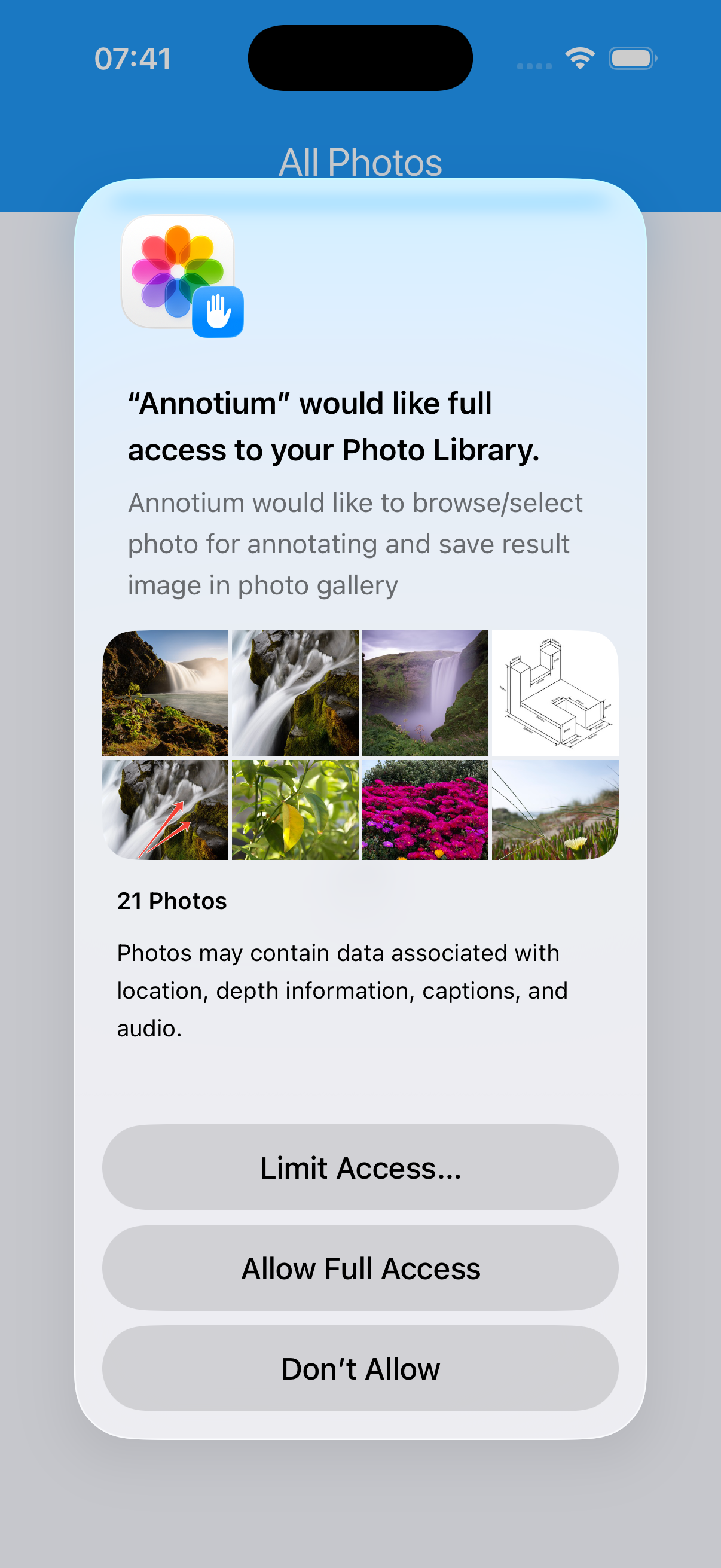
- If app has no permission to access Photos, please open Open Settings and enable Annotium access it.
Browse and switch albums
- Switch the home workspace to Photos.
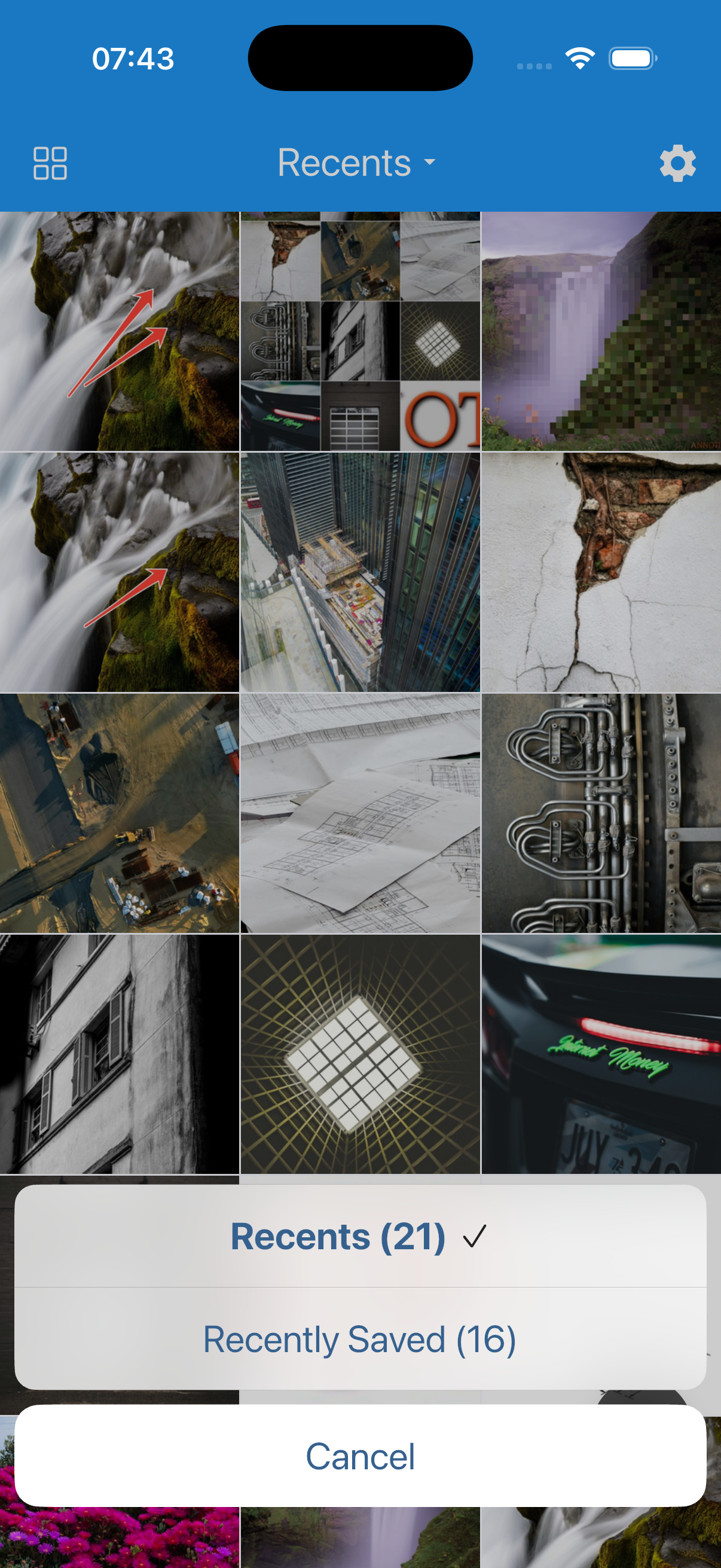
- Tap the album title and choose another album.
- Pull down on the grid to refresh it.
Open or create a photo
- Tap a thumbnail to open it in the editor.
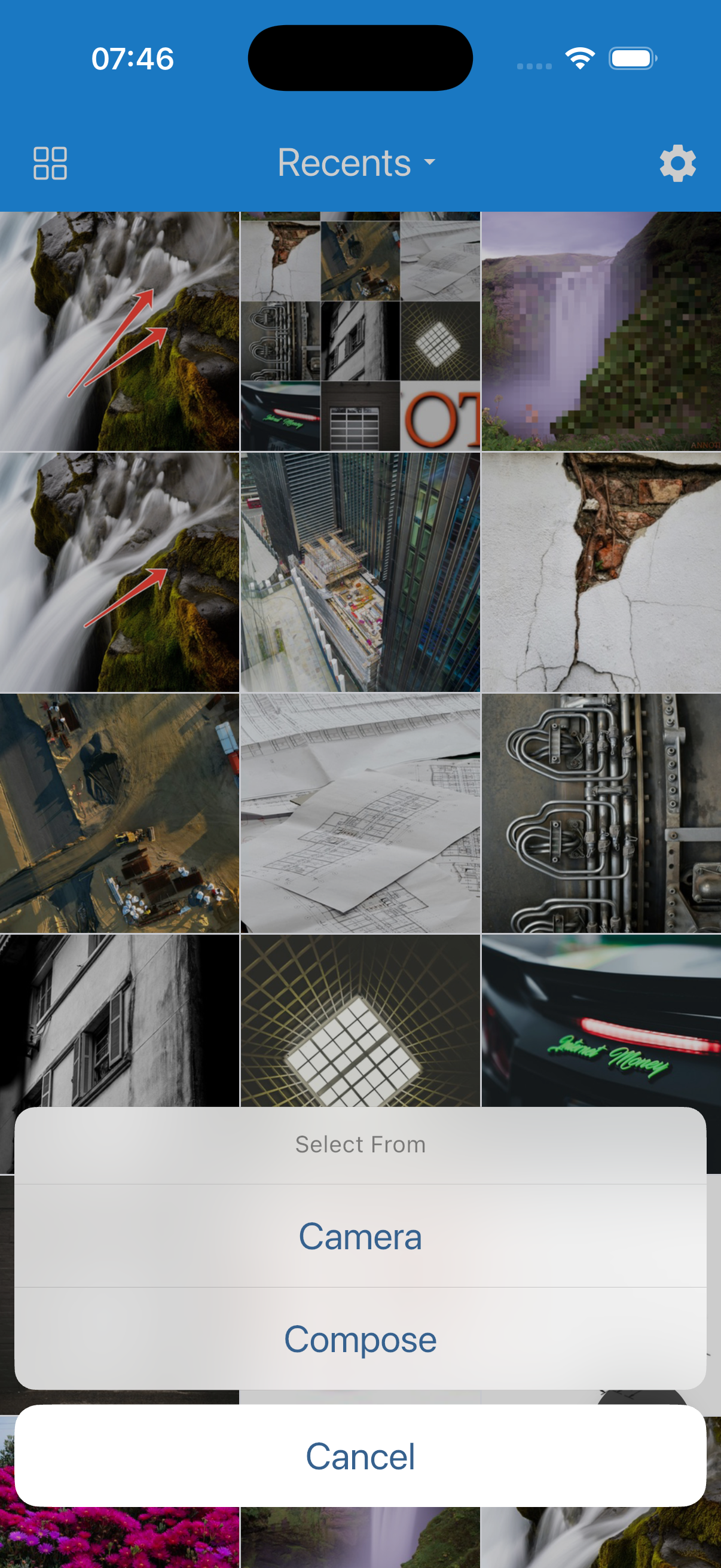
- Use New to take a photo.
- Use Compose to combine multiple photos (Premium).
Select and delete photos
- Long-press one photo to begin selection.
- Tap more photos to add or remove them from the selection.
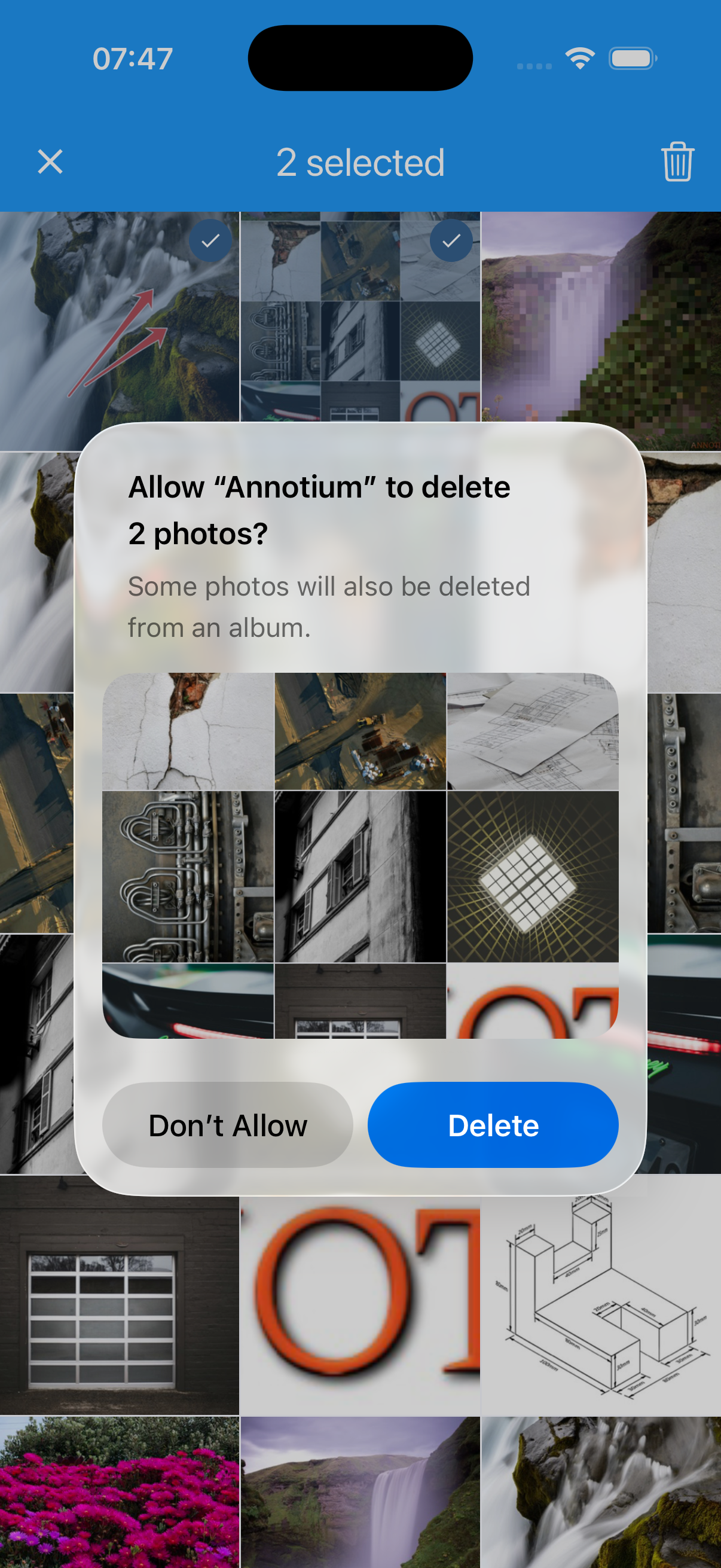
- Delete and respond to the Annotium or system confirmation.
Device photo deletion
Deleting from Photos affects the device photo library and has no Annotium undo action. Make this warning prominent in the completed article.