Skip to content

Callout (Rectangle) ​

Use a brief label when the detail needs an explanation.
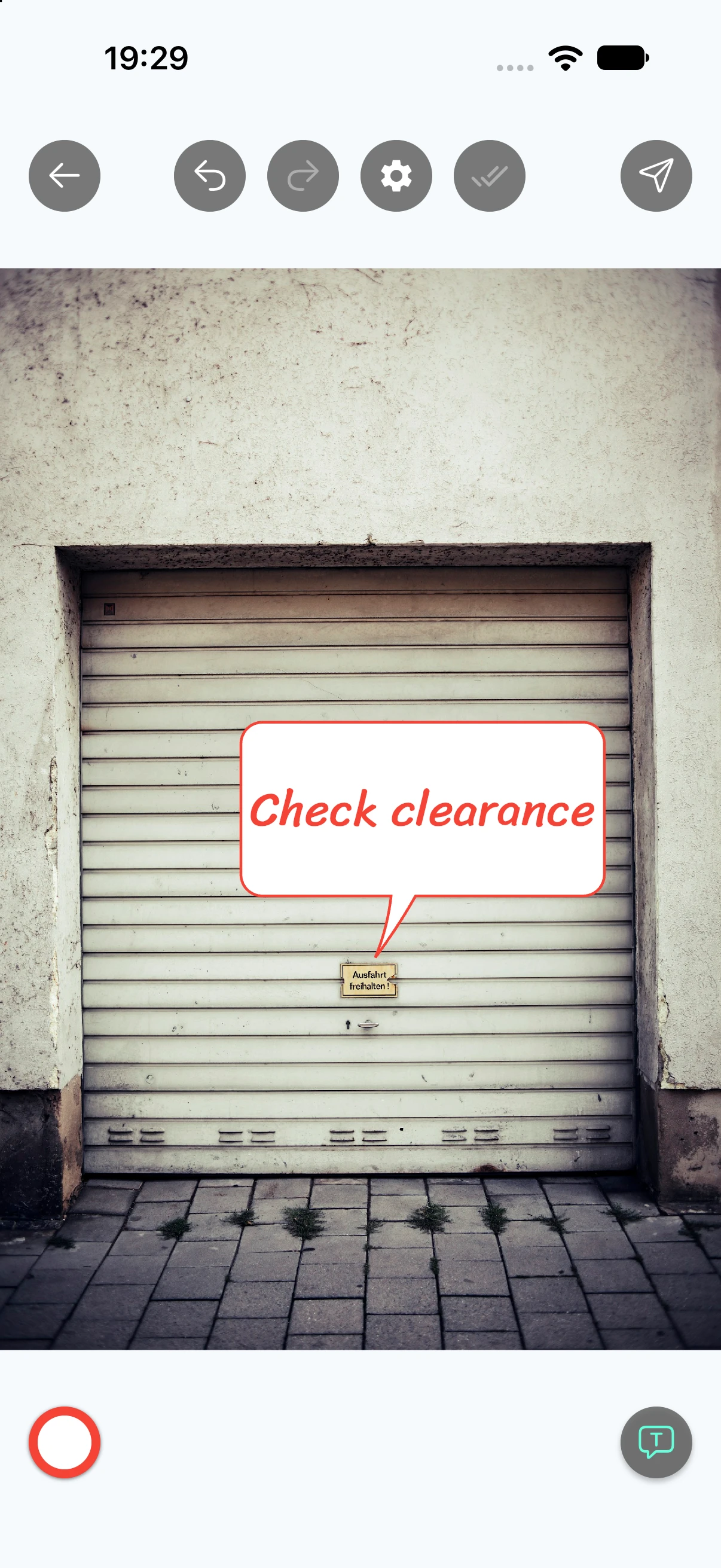
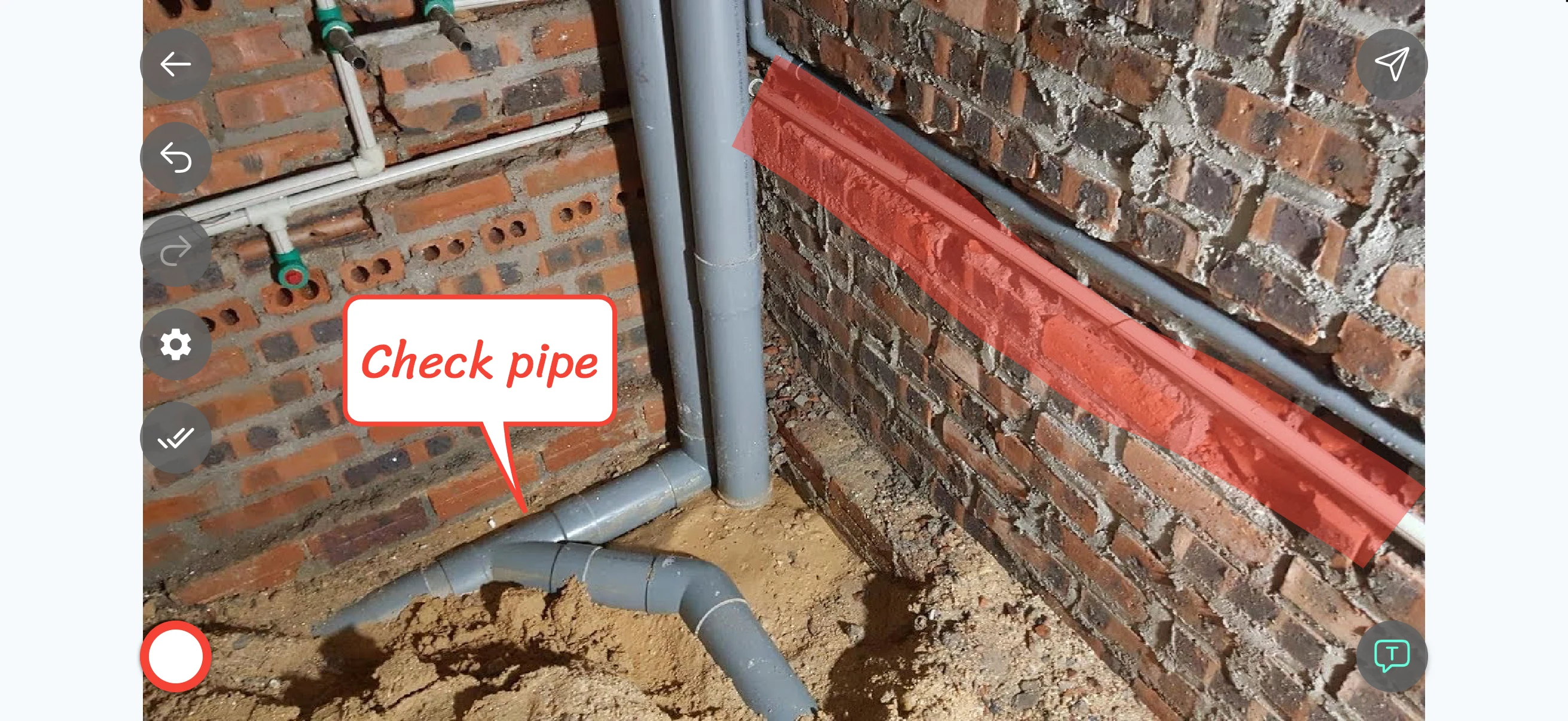
A red-outlined white callout reading Check clearance points directly to the small yellow notice on a closed garage door.A white rounded rectangle callout reading Check pipe points to a drain pipe; a translucent red Highlight remains over another pipe.
  1. Choose Callout (Rectangle) from the text tools.
  2. Drag to set the box size and place its pointer near the detail.
  3. Enter a short note, then move the box if it obscures the photo.
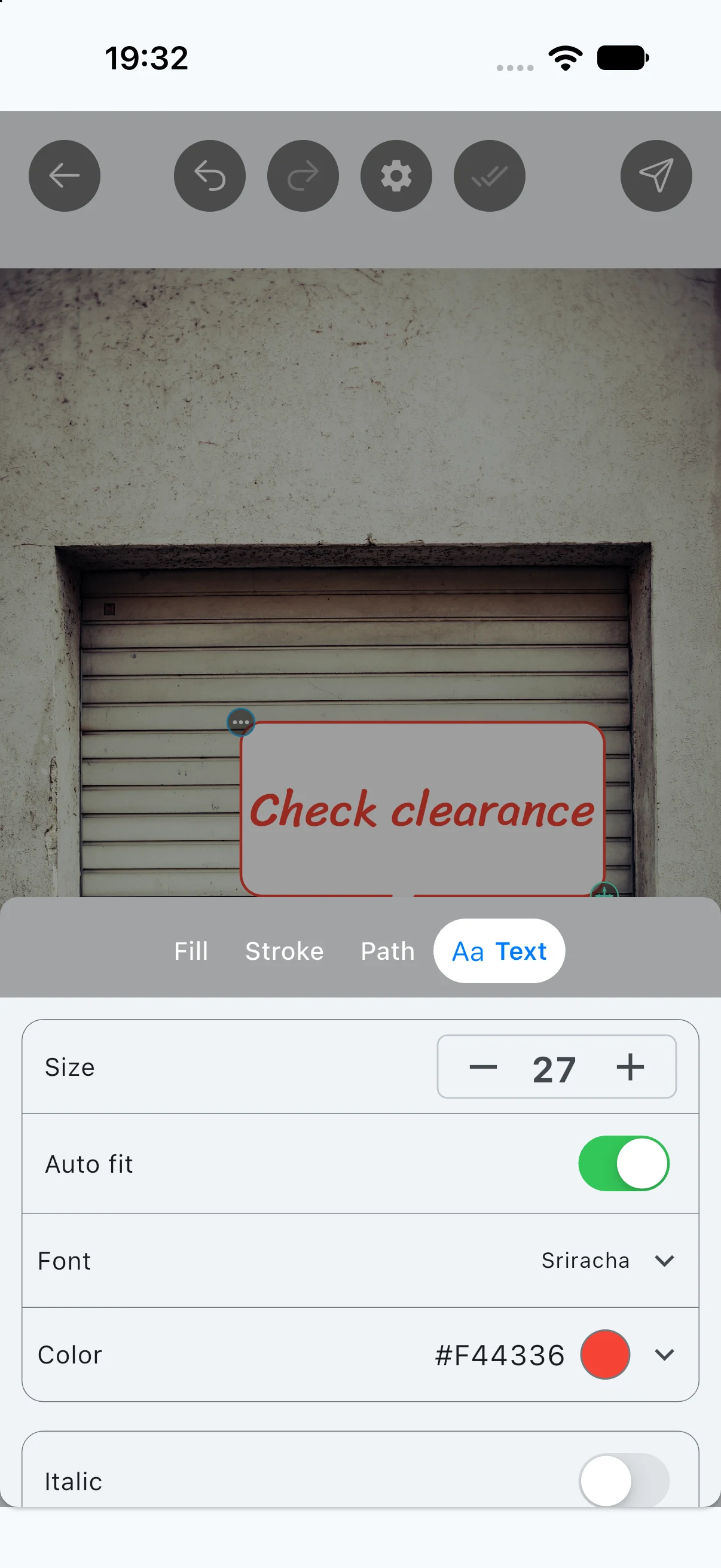
  4. Open Properties to adjust the text size, font, or color.
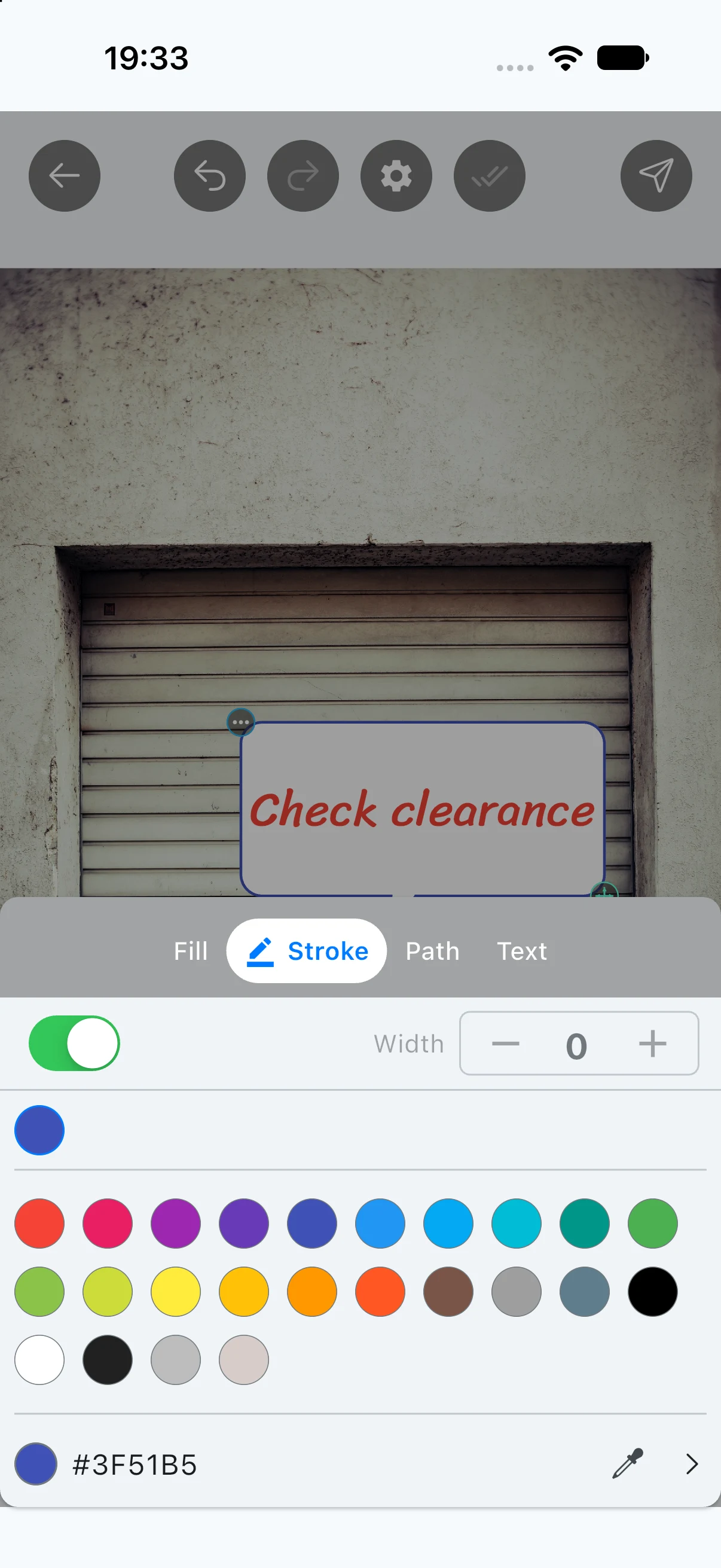
  5. Use Stroke to choose the callout outline color and width.
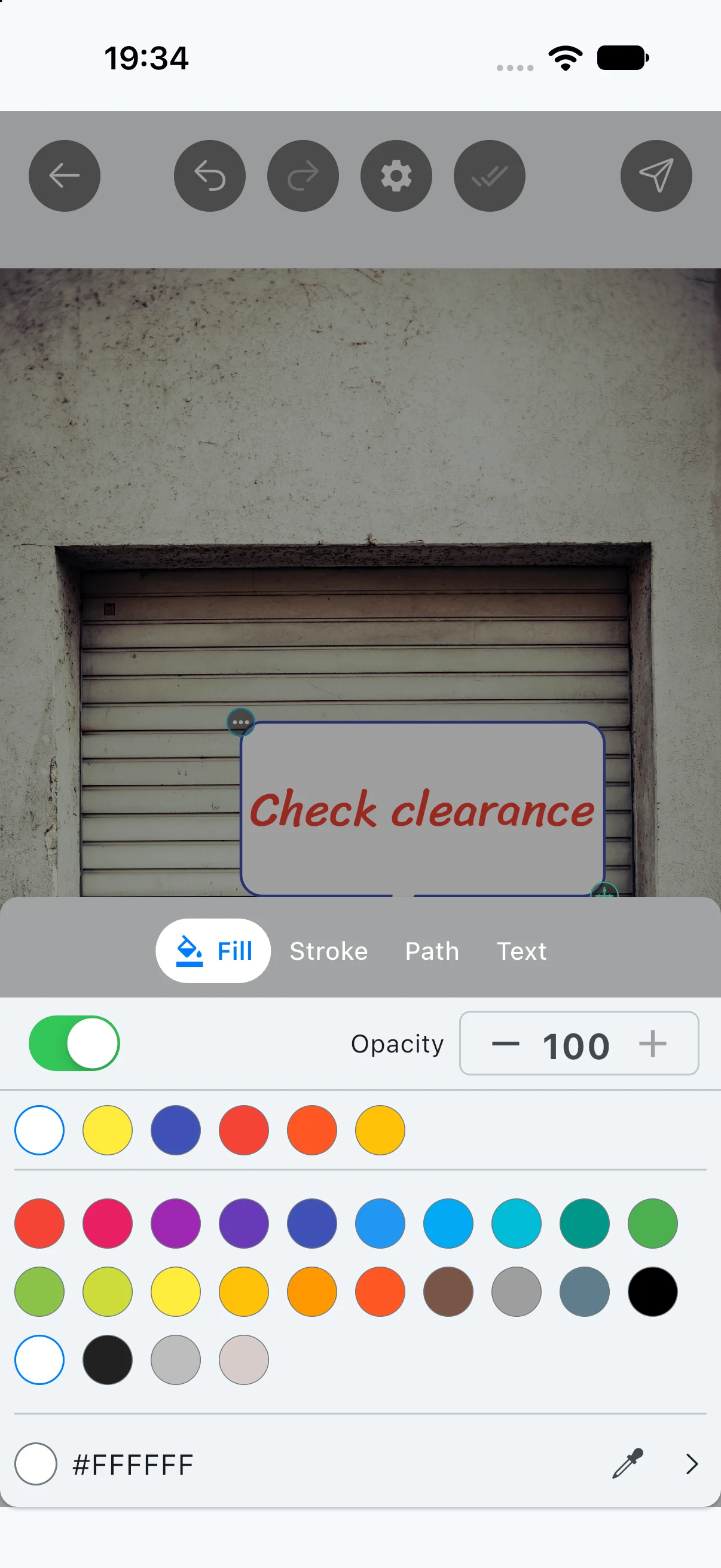
  6. Use Fill to choose a background color and set its opacity.
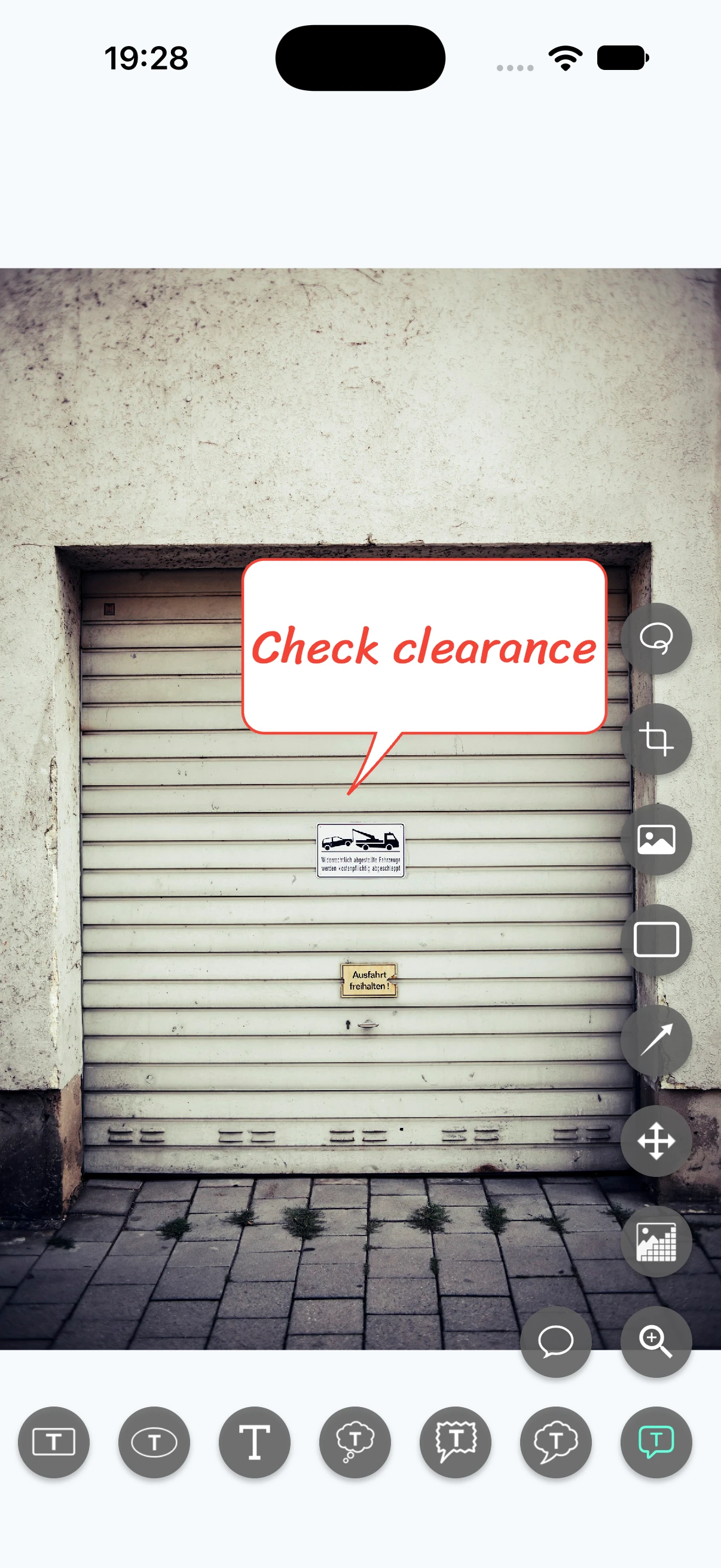
Annotium's Text tools are open over the garage photo, with Callout (Rectangle) highlighted in teal and the Check clearance result still visible.
Step 1: open the Text tools and choose the teal Callout (Rectangle) icon.
The Text Properties panel shows size, auto fit, font, and color controls for the selected Check clearance callout.
Step 4: adjust the note in Properties. The Text tab shows size, font, and color controls.
The Stroke Properties tab is open for the selected Check clearance callout, showing the outline toggle, width control, and color palette.
Step 5: customize the callout outline in Stroke Properties.
The Fill Properties tab is open for the selected Check clearance callout, showing the fill toggle, opacity set to 100, and color palettes.
Step 6: choose a fill color and adjust opacity in Fill Properties.

Keep the label concise. Use an Arrow when a pointer alone is enough.

Next ​

Measure a distance · Browse all tools